EPC Vendors

EPC Vendors

The EPC Vendors module allows administrators to manage Engineering, Procurement, and Construction (EPC) vendor information within SolarCRM. It provides functionalities to add new vendors, edit details, export vendor data, and manage vendor accounts.

Admin Dashboard → EPC Vendors

EPC Vendors

EPC Vendors Overview

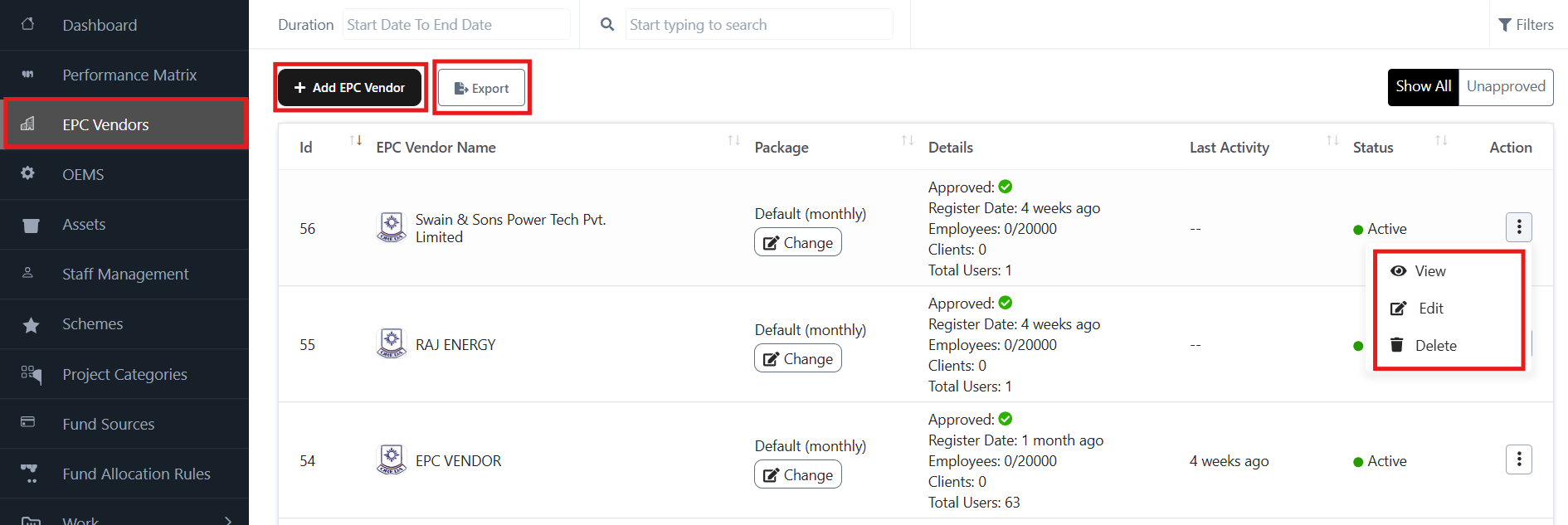
The EPC Vendor page displays the list of registered vendor with details such as:

  • Vendor ID & Name
  • Package (Default monthly or custom package)
  • Approval & Registration Date
  • Employee & Client Counts
  • Status (Active/Inactive)
  • Last Activity

From this screen, admins can:

  • Add new EPC vendors
  • Export vendor data
  • View, Edit, or Delete vendor records

Adding a New EPC Vendor

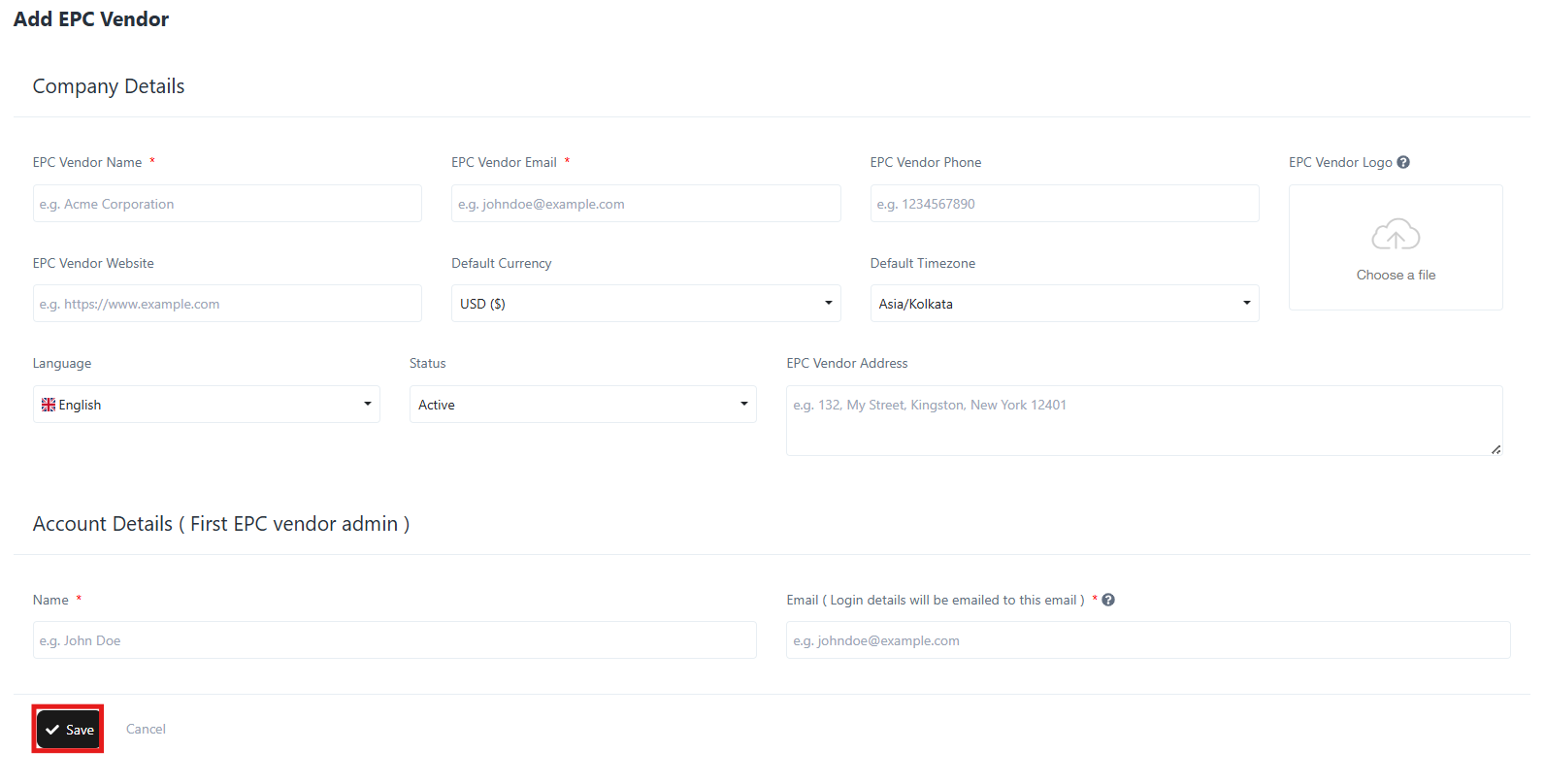
  • Click Add EPC Vendor.
  • Fill in the Company Details:
    • Vendor Name (required)
    • Vendor Email (required)
    • Vendor Phone
    • Vendor Website
    • Default Currency
    • Default Timezone
    • Vendor Address
    • Upload Vendor Logo
    • Select Language and Status
  • Enter Account Details (for the first EPC vendor admin):
    • Admin Name (required)
    • Admin Email (required – login credentials will be sent here)
  • Click Save to create the EPC Vendor record.
Adding a New EPC Vendor

Exporting EPC Vendors

  • Click Export on the EPC Vendor page to download the list of vendor.
  • Exported data can be used for offline reporting or compliance records.

Vendor Actions

For each vendor, the Action menu (three dots on the right side) provides options:

  • View → View vendor details.
  • Edit → Update vendor details such as contact info, package, or status.
  • Delete → Permanently remove a vendor from the system.

Vendor Status

  • Vendors can be marked Active or Inactive depending on their approval or engagement.
  • Status can be updated via the Edit option.

Key Benefits

  • Centralized EPC vendor database
  • Easy onboarding of new vendors
  • Export-ready vendor reports
  • Secure vendor admin login creation

Performance Matrix

Performance Matrix

The Performance Matrix module provides an in-depth analysis of EPC vendors’ performance, covering timeliness, quality compliance, satisfaction levels, fund utilization, and project completion ratios. It is designed to help administrators evaluate and rank vendors effectively.

1. Accessing Performance Matrix

  • From the left-hand navigation menu, click on Performance Matrix.
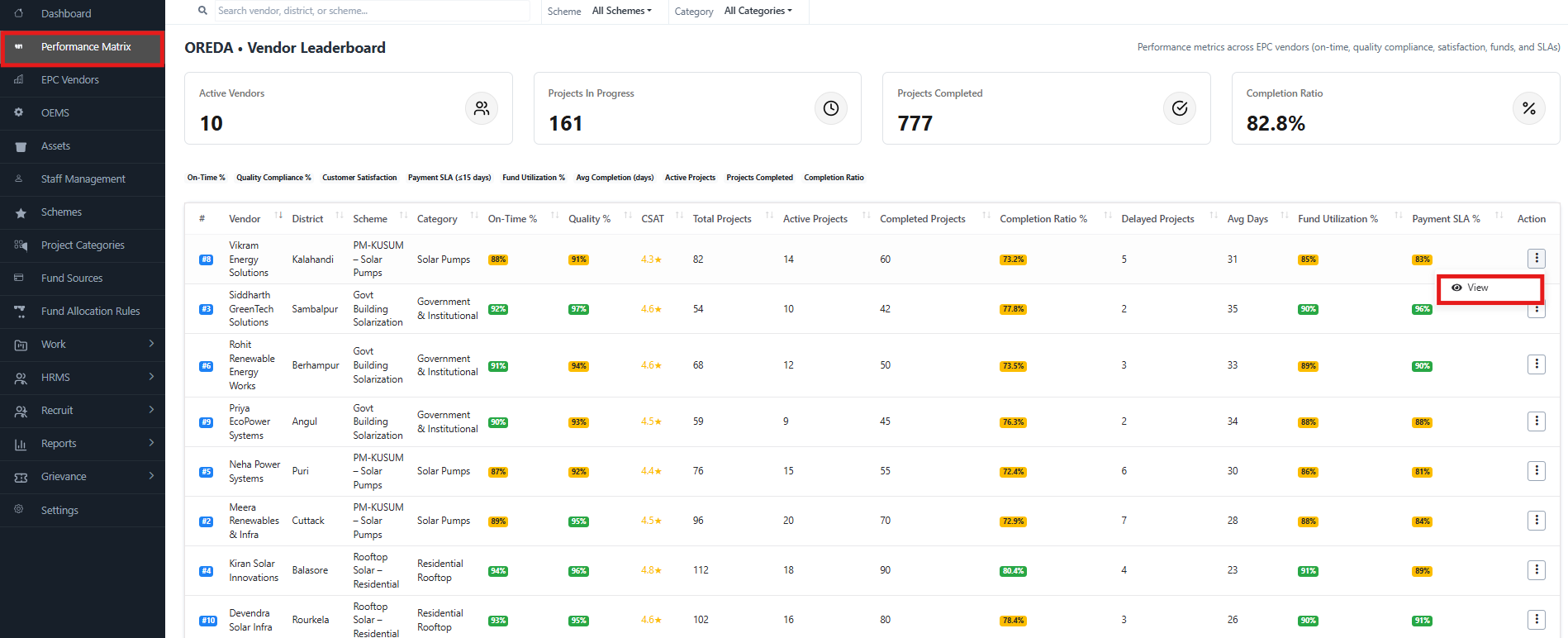
  • The screen displays the Vendor Leaderboard, along with performance indicators.

Performance Matrix

2. Key Metrics Overview (Top Panel)

At the top of the module, summary indicators are shown:

  • Active Vendors – The total number of EPC vendors currently working.
  • Projects In Progress – Ongoing projects under execution.
  • Projects Completed – Total number of successfully completed projects.
  • Completion Ratio (%) – Percentage of projects completed against assigned projects.

3. Vendor Leaderboard (Detailed Table)

The leaderboard ranks EPC vendors based on performance metrics.

Columns in the Leaderboard:

  • # (Rank) – Vendor’s rank based on performance.
  • Vendor – Name of the EPC vendor.
  • District – Location/district of the vendor’s projects.
  • Scheme – Scheme under which the vendor is executing projects (e.g., PM-KUSUM, Govt Building Solarization, Residential Rooftop).
  • Category – Project category (e.g., Solar Pumps, Government & Institutional, Residential Rooftop).
  • On-Time % – Percentage of projects completed within the scheduled timeline.
  • Quality % – Quality compliance percentage.
  • CSAT – Customer Satisfaction Score, represented in star ratings.
  • Total Projects – Number of total projects handled by the vendor.
  • Active Projects – Ongoing projects.
  • Completed Projects – Number of finished projects.
  • Completion Ratio % – Completed projects divided by total projects.
  • Delayed Projects – Projects delayed beyond the scheduled timeline.
  • Avg Days – Average number of days taken for completion.
  • Fund Utilization % – Percentage of allocated funds utilized by the vendor.
  • Payment SLA % – Adherence to payment Service Level Agreement timelines.

4. Actions

Each vendor row has an Action menu (⋮).

  • View – Opens detailed vendor performance reports, project data, and fund utilization.

5. Example Insights

From the screenshot:

  • Kiran Solar Innovations (#4):
    • On-Time %: 94%
    • Quality %: 96%
    • CSAT: 4.8★
    • Completion Ratio: 80.4% (highest in list)
  • Vikram Energy Solutions (#8):
    • On-Time %: 88%
    • Quality %: 91%
    • CSAT: 4.3★
    • Avg Days: 31

This allows Admins to benchmark vendor performance and take corrective actions.

6. Filters & Search Options

At the top, Admins can refine results using filters:

  • Scheme filter – View vendors by specific schemes.
  • Category filter – Narrow down by project categories.
  • Search bar – Search vendors, districts, or schemes directly.

Admin Dashboard

Admin Dashboard

The Admin Dashboard is the central monitoring and control panel for administrators in SolarCRM. It provides a consolidated view of schemes, projects, vendors, funds, and overall performance metrics.

To access the Admin Dashboard, follow this path:

Login → Admin Portal → Left Menu → Dashboard

Admin Dashboard

1. Dashboard Overview

When you log in as an Admin, the Dashboard is the first screen displayed. It gives a real-time summary of key performance indicators.

Dashboard Highlights:

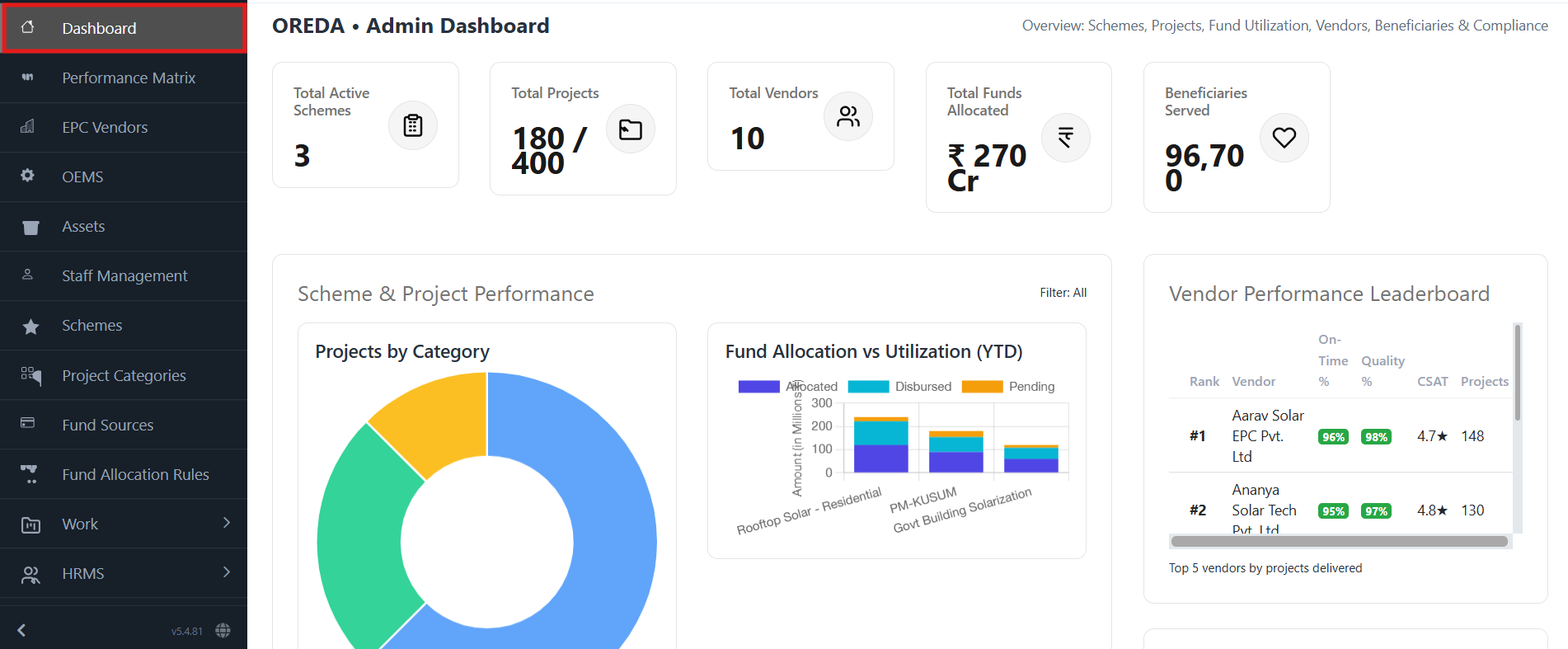
  • Total Active Schemes – Number of ongoing schemes.
  • Total Projects – Displays both completed and ongoing projects against total assigned projects.
  • Total Vendors – The total number of EPC vendors currently registered.
  • Total Funds Allocated – Shows overall funds allocated for all projects/schemes.
  • Beneficiaries Served – Indicates the total number of beneficiaries reached under different projects.

2. Scheme & Project Performance

This section provides insights into the scheme and project-level distribution and fund utilization.

  • Projects by Category (Pie Chart)

Visual breakdown of projects by categories such as Residential, Government, Commercial, etc.

  • Fund Allocation vs Utilization (YTD) (Bar Chart)

Compares funds allocated, disbursed, and pending across major project categories (e.g., Rooftop Solar, PM-KUSUM, Govt Building Solarization).

3. Vendor Performance Leaderboard

This leaderboard displays top-performing EPC vendors based on multiple performance metrics:

  • Rank – Vendor’s rank in performance.
  • Vendor Name – Name of the EPC Vendor.
  • On-Time % – Percentage of projects delivered on time.
  • Quality%  – Quality performance percentage.
  • CSAT (Customer Satisfaction Score) – Average customer rating.
  • Projects – Number of projects completed by the vendor.

Example:

  • #1 Aarav Solar EPC Pvt. Ltd – 96% on-time, 98% quality, 4.7★ CSAT, 148 projects.
  • #2 Ananya Solar Tech Pvt. Ltd – 95% on-time, 97% quality, 4.8★ CSAT, 130 projects.

4. Navigation Panel (Left Sidebar)

The left-hand navigation panel allows quick access to all admin modules:

  • Dashboard – Overview of all performance indicators.
  • Performance Matrix – In-depth vendor and project performance tracking.
  • EPC Vendors – Manage EPC vendor details.
  • OEMs – Manage Original Equipment Manufacturers.
  • Assets – Track project-related assets.
  • Staff Management – Manage user/staff profiles.
  • Schemes – Create and manage solar schemes.
  • Project Categories – Categorize and group projects.
  • Fund Sources – Define and track funding sources.
  • Fund Allocation Rules – Set rules for fund allocation and disbursement.
  • Work & HRMS – Manage work allocation and staff HRMS.

5. Actions You Can Perform

  • Monitor active schemes, projects, vendors, and beneficiaries.
  • Compare allocated vs utilized funds.
  • Track vendor rankings and identify top performers.
  • Use filters for deeper insights (e.g., by scheme, category, or year).
  • Navigate to detailed modules for more granular actions.