Installation Types

Installation Types

Overview

The Installation Type section in the Solar module allows you to manage different type of installation categories, such as roof types or ground-mounted systems. This helps standardize site assessments and ensures accurate project planning.

With this feature, you can add, edit, or delete installation type according to your project requirements.

Accessing Installation Types

  • Log in to your application.
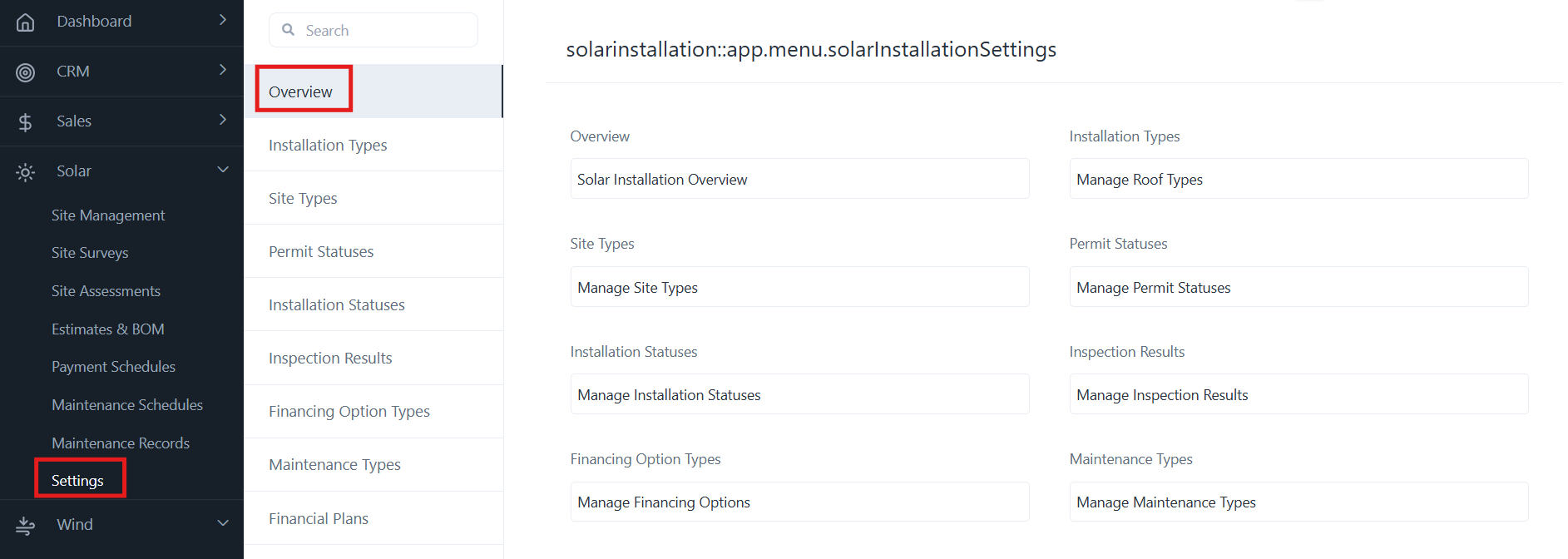
  • From the left-hand menu, go to Solar ➜ Settings.
  • Click on Installation Type.

Login ➜ Solar ➜ Settings ➜ Installation Types ➜ Add / Edit / Delete
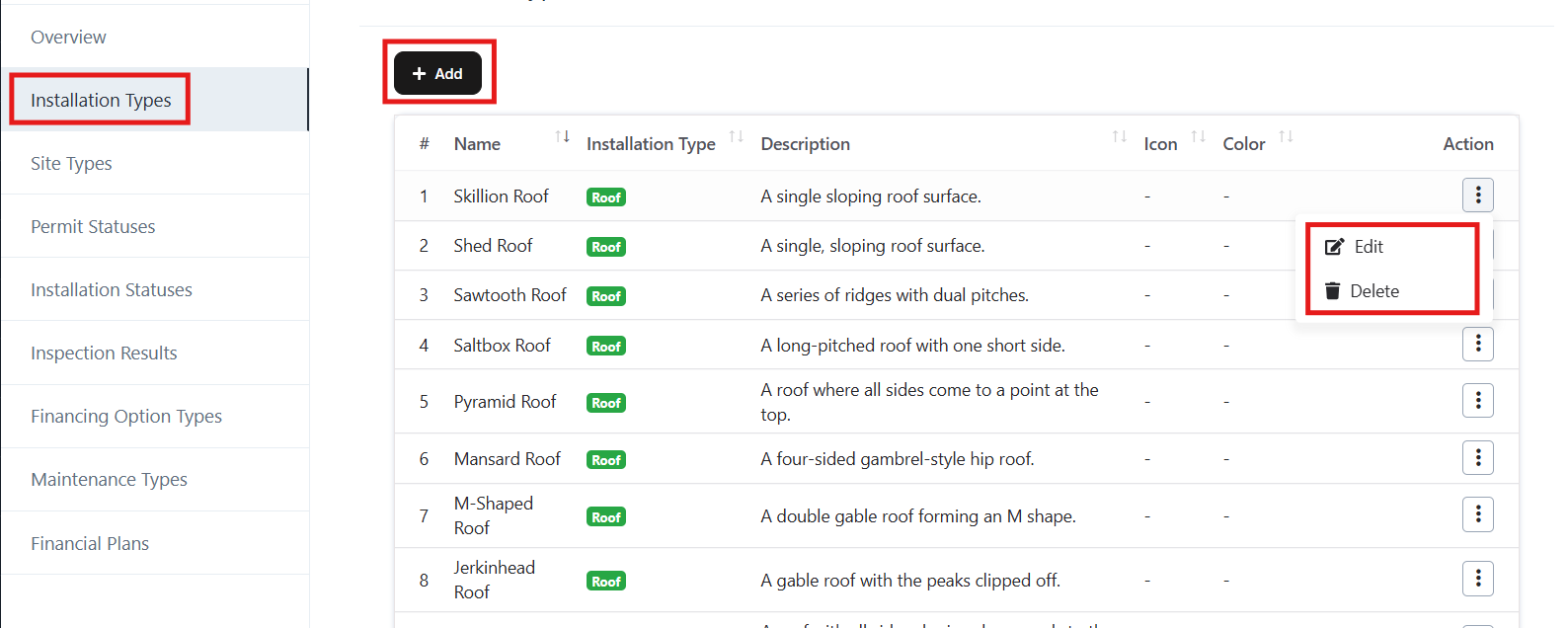
Navigation Path

Installation Types – Actions

1. Add New Installation Type

  • Click on the + Add button (top-left).
  • A form will open (see screenshot).
  • Fill in the following details:
    • Name – Enter the name of the installation type (e.g., Skillion Roof).
    • Installation Type – Select type (e.g., Roof, Ground Mount).
    • Description – Provide a brief description of the installation type.
    • Icon – (Optional) Upload/define an icon for quick identification.
    • Color – (Optional) Assign a color for better visualization.
  • Click Save to create the new installation type.
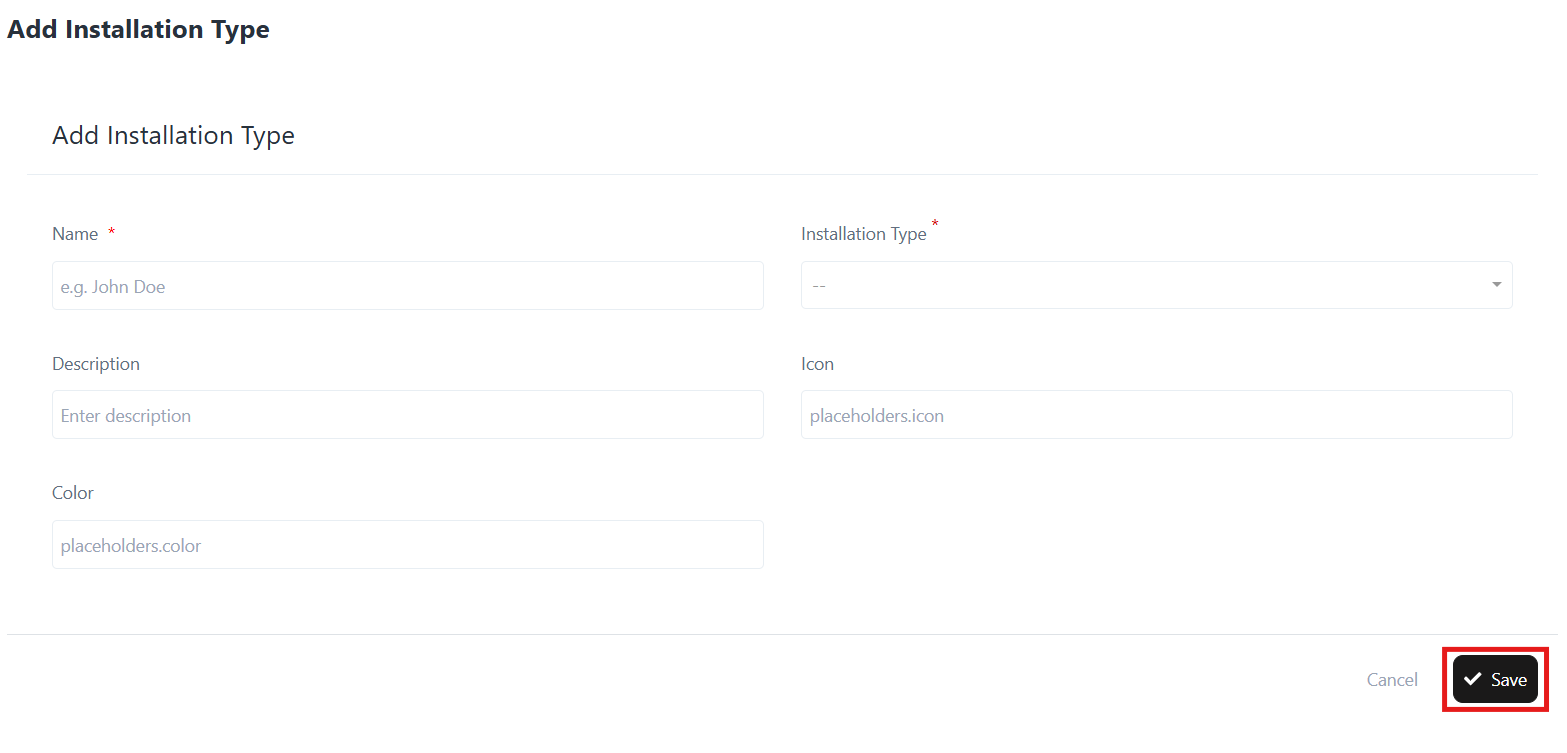
Add New Installation Type

Example:

Name: Skillion Roof
Type: Roof
Description: A single sloping roof surface.

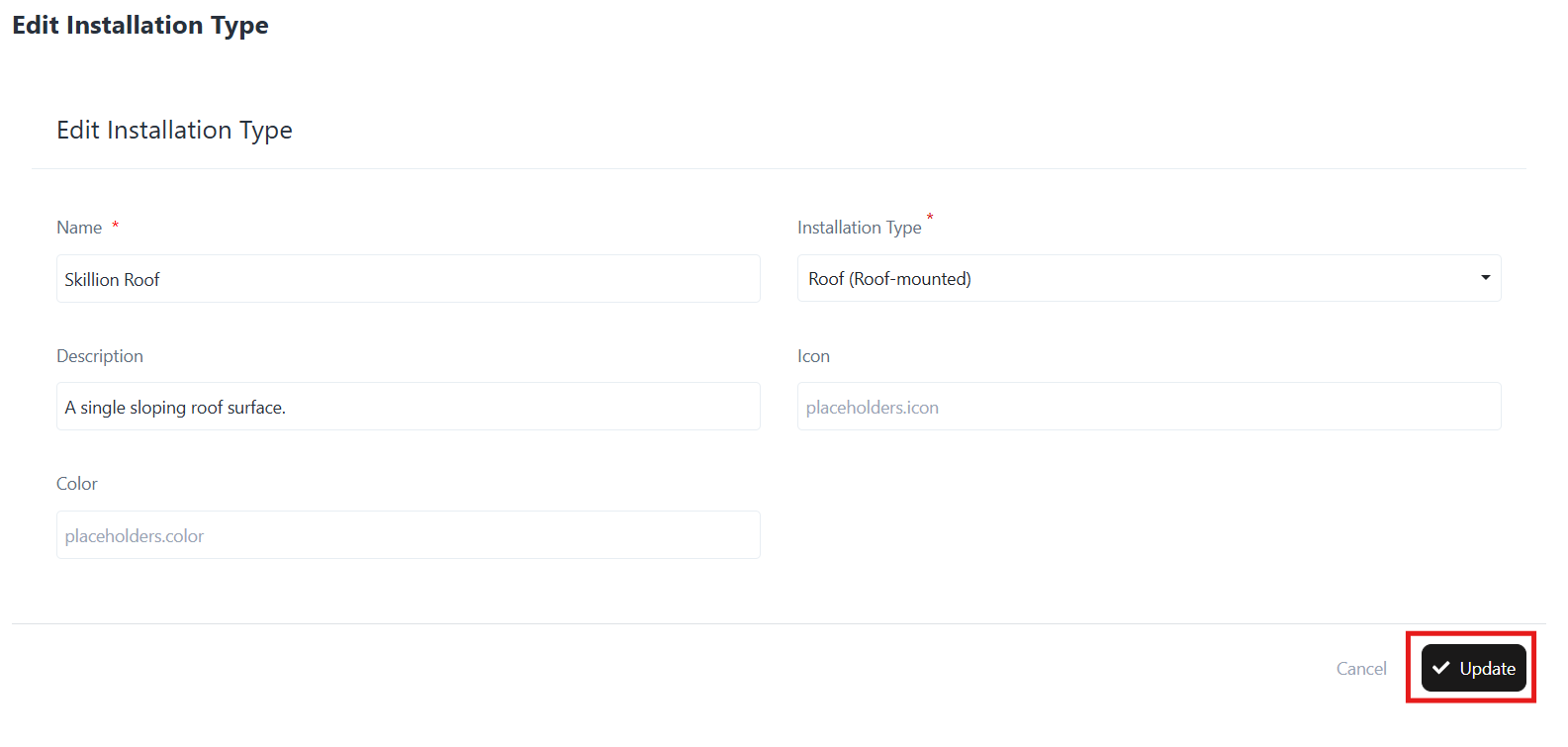
2. Edit Installation Type

  • In the Installation Type list, click the three-dot menu beside the record.
  • Select Edit.
  • Update the fields such as Name, Type, Description, Icon, or Color.
  • Click Update to save the changes.

Edit Installation TypeExample Update:

Installation Type: Roof (Roof-mounted)
Description: A single sloping roof surface.

3. Delete Installation Type

  • In the Installation Type list, click the three-dot menu beside the record.
  • Select Delete.
  • Confirm the deletion.

Note: A Deleted installation type cannot be recovered.
Access Settings

Access Settings

Overview

The Settings sub-module in the Solar CRM provides administrators with the ability to configure system-wide parameters for solar project management. By customizing site types, installation statuses, maintenance types, financing options, and inspection results, businesses can align the platform with their operational processes.

This section ensures flexibility and standardization across projects while simplifying data entry and reporting.

Accessing Settings

  • Log in to CrmLeaf.
  • From the left navigation panel, go to Solar → Settings.
  • The settings page provides multiple configuration options displayed in categorized lists.

Login → Solar → Settings → [Choose Configuration Option]
Navigation Path

Key Configuration Options

  • Overview
    • Provides a general overview of solar installation configuration.
  • Site Types
    • Define and manage categories of sites (e.g., Residential, Commercial, Industrial, Government).
  • Installation Types
    • Manage roof types (e.g., Flat Roof, Sloped Roof, Ground Mount).
  • Permit Statuses
    • Configure permit approval workflows (e.g., Pending, Approved, Rejected).
  • Installation Statuses
    • Set installation progress markers (e.g., In Progress, Completed, Delayed).
  • Inspection Results
    • Define inspection outcomes (e.g., Passed, Failed, Re-inspection Required).
  • Financing Option Types
    • Manage financing schemes available (e.g., Lease, Loan, Purchase, PPA).
  • Maintenance Types
    • Categorize maintenance activities (e.g., Preventive, Corrective, Inspection, Emergency).
  • Financial Plans
    • Configure high-level financing plans that may be applied across projects.

How to Manage Settings

  • Select the configuration you want to update (e.g., Manage Site Types).
  • Add, edit, or delete records as required.
  • Changes are immediately reflected across the Solar module (in Site Management, Assessments, Maintenance, etc.).

Benefits

  • Ensures consistency in project data.
  • Reduces manual errors with standardized dropdowns.
  • Provides flexibility to adapt the CRM to unique business workflows.
  • Simplifies filtering, reporting, and compliance tracking.