Financial Plans

Financial Plans

The Financial Plans module allows you to add, edit, view, and manage various financial plans for solar projects.

Accessing Financial Plans

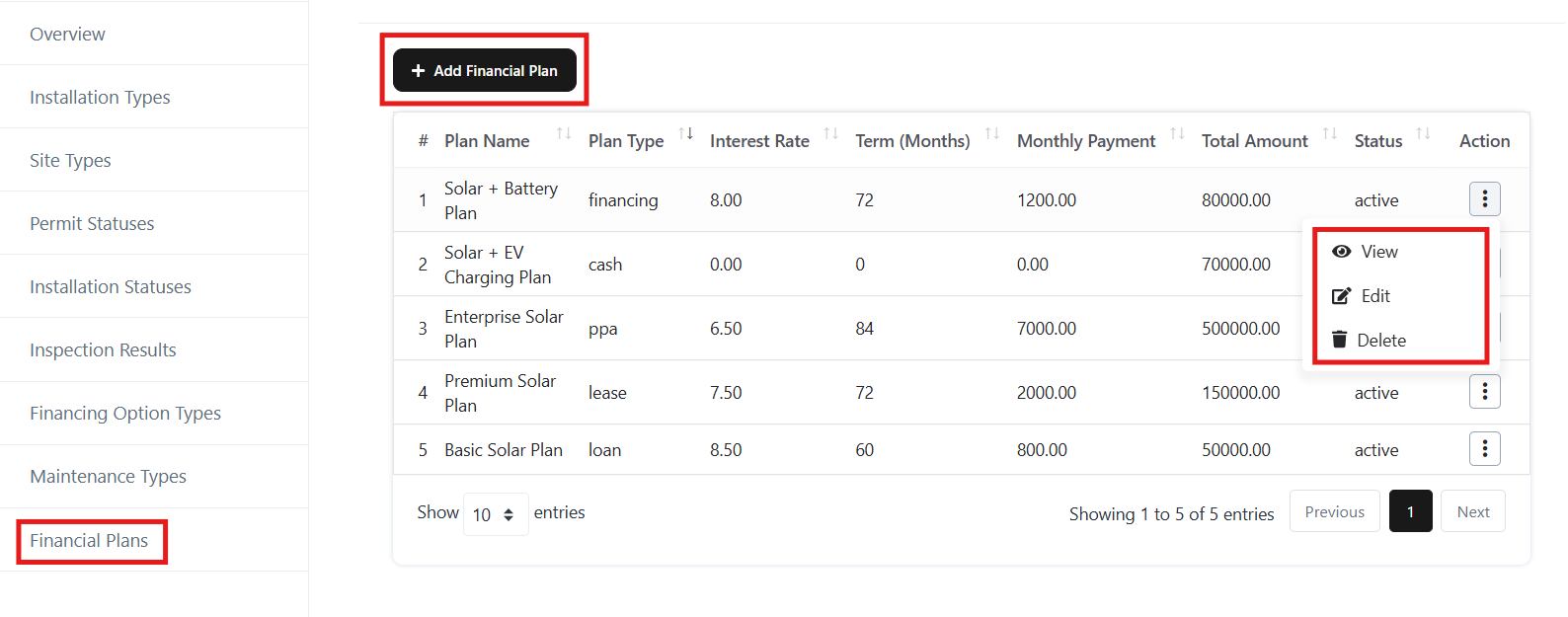
  • Navigate to the Solar > Settings > Financial Plan section from the left menu.
  • A list of existing financial plan will be displayed with details such as:
    • Plan Name
    • Plan Type
    • Interest Rate
    • Term (Months)
    • Monthly Payment
    • Total Amount
    • Status

Accessing Financial Plans

Add a Financial Plan

  • Click the + Add Financial Plan button at the top.
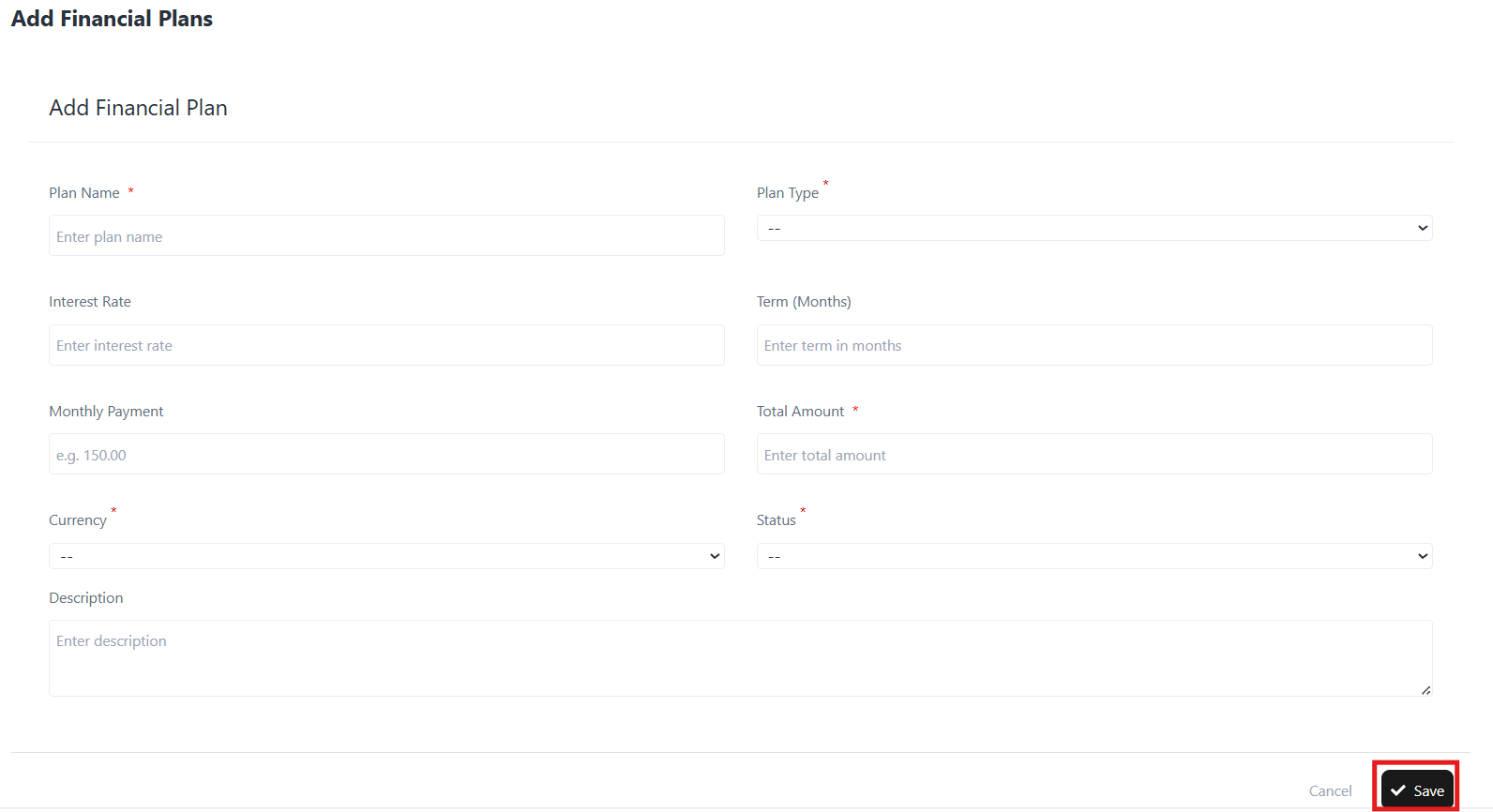
  • Fill in the following details:
    • Plan Name – Enter the name of the plan.
    • Plan Type – Choose the plan type (e.g., financing, lease, loan, PPA, cash).
    • Interest Rate – Input the interest rate for the plan.
    • Term (Months) – Enter the duration of the plan in months.
    • Monthly Payment – Define the monthly installment.
    • Total Amount – Enter the total payable amount.
    • Currency – Select the applicable currency.
    • Status – Set the plan as Active or Inactive.
    • Description – Provide a short explanation of the plan.
  • Click Save to create the plan.

Add a Financial Plan

Edit a Financial Plan

  • In the Financial Plan list, click the three-dot menu under the Action column for the desired plan.
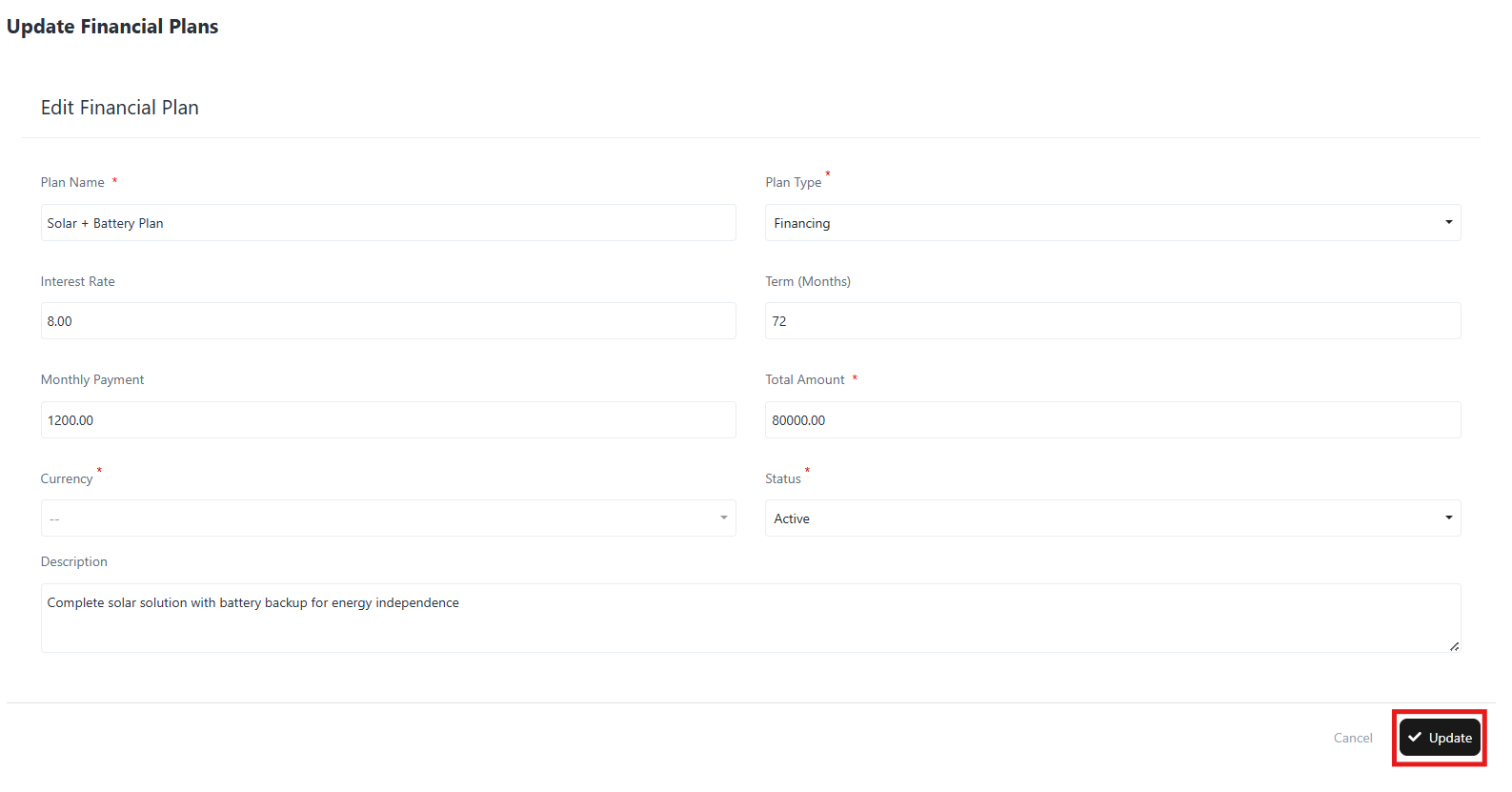
  • Select Edit.
  • Update any of the details:
    • Plan Name, Plan Type, Interest Rate, Term, Monthly Payment, Total Amount, Currency, Status, or Description.
  • Click Update to save changes.

Edit a Financial Plan

View a Financial Plan

  • Click the three-dot menu under the Action column.
  • Select View.
  • The system displays detailed plan information including:
    • Plan Name
    • Plan Type
    • Interest Rate
    • Term (Months)
    • Monthly Payment
    • Total Amount
    • Status
    • Description
    • Created Date

Delete a Financial Plan

  • Click the three-dot menu next to the financial plan.
  • Select Delete.
  • Confirm the deletion when prompted.
Financing Option

Financing Option

This guide explains how to manage Financing Option Types in the system. You can addedit, or delete different financing options to match your project requirements.

1. Accessing Financing Option Types

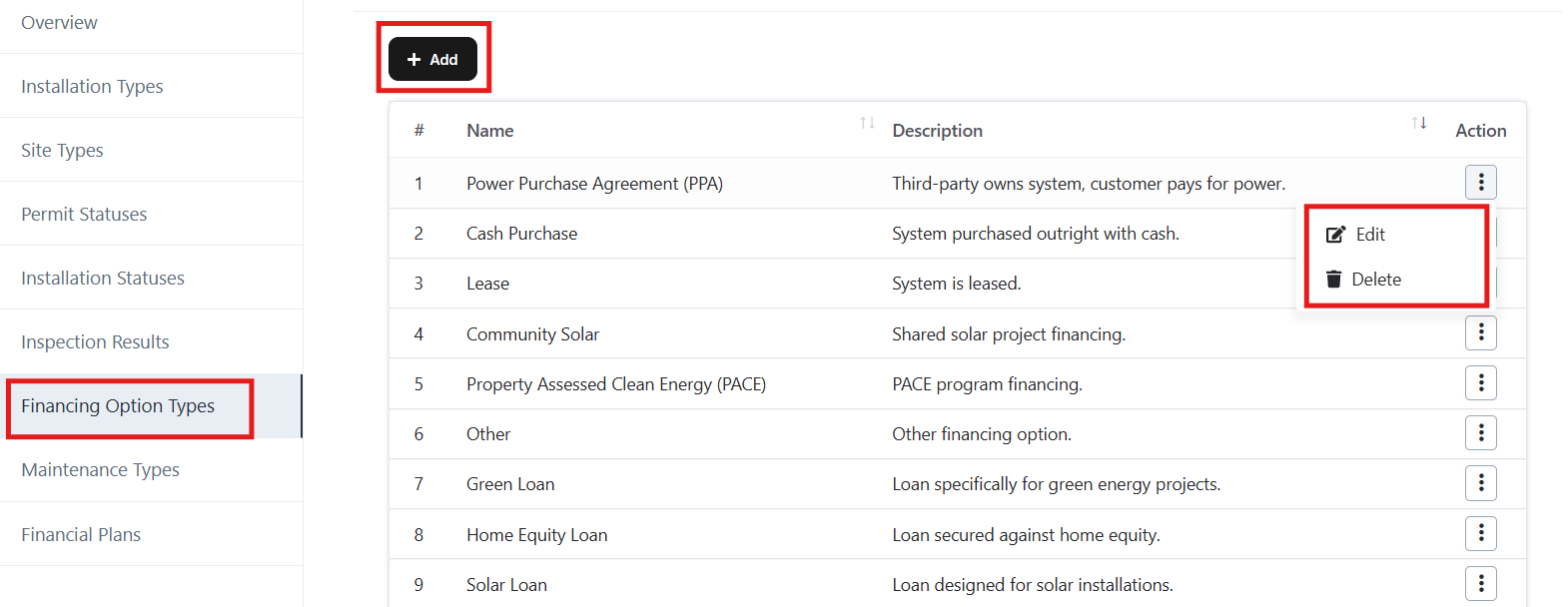
  • From the left sidebar menu, go to Settings → Financing Options Types.
  • A list of existing financing options will be displayed with columns for:
    • # – Serial number of the entry.
    • Name – Financing options name.
    • Description – A short explanation of the option.
    • Action – Options to Edit or Delete.

Accessing Financing Option Types

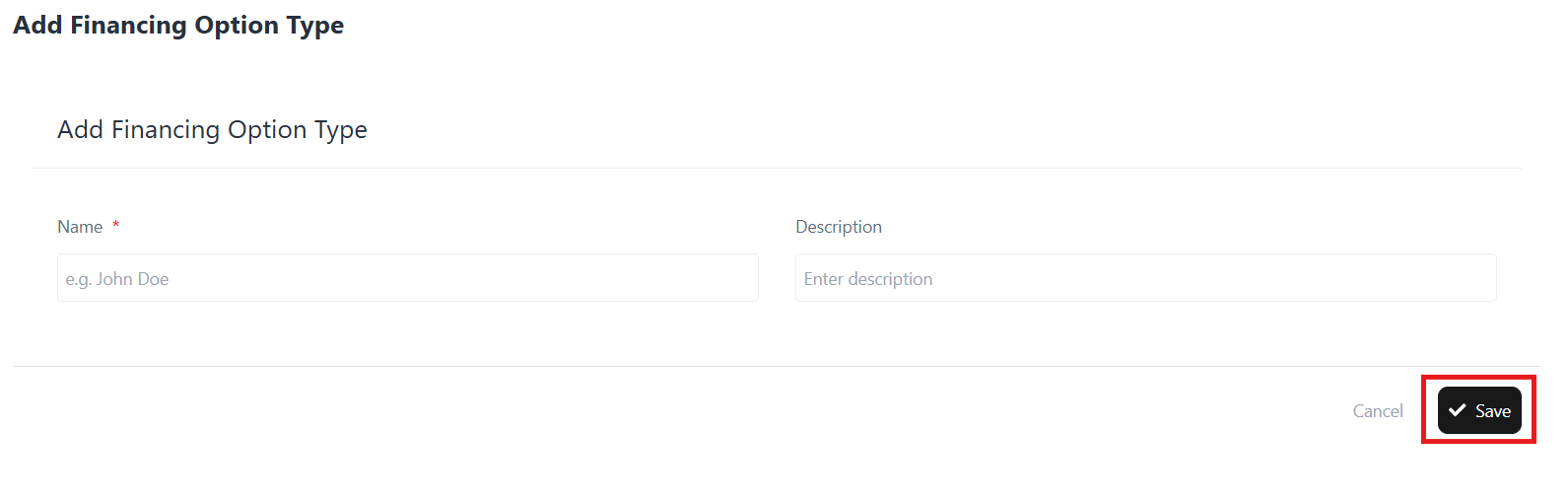
2. Adding a Financing Option Type

  • Click the + Add button at the top.
  • The Add Financing Options Type form will open.
  • Enter the following details:
    • Name (Required) → Example: Cash Purchase, Lease, Green Loan.
    • Description → Short explanation of the financing options.
  • Click Save to add the new financing options.

Adding a Financing Option Type

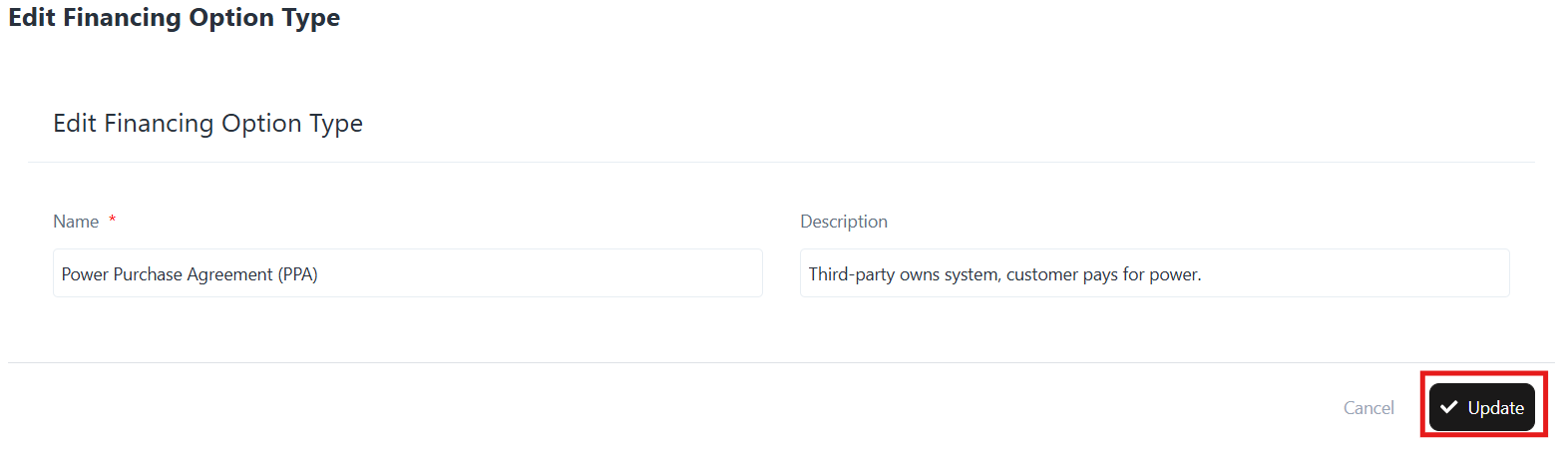
3. Editing a Financing Option Type

  • In the Action column, click the three dots (…) beside the financing options you want to update.
  • Select Edit.
  • The Edit Financing Options Type form will appear.
  • Modify the Name or Description as needed.
  • Click Update to save changes.

Editing a Financing Option Type

4. Deleting a Financing Option Type

  • In the Action column, click the three dots (…) beside the financing options you want to remove.
  • Select Delete.
  • Confirm the deletion when prompted.
Note: Once deleted, the option cannot be recovered.

5. Example Financing Options

  • Power Purchase Agreement (PPA): Third-party owns system, customer pays for power.
  • Cash Purchase: System purchased outright with cash.
  • Lease: System is leased.
  • Community Solar: Shared solar project financing.
  • PACE (Property Assessed Clean Energy): Financing tied to property taxes.
  • Green Loan: A Loan for green energy projects.
  • Home Equity Loan: A Loan secured against home equity.
  • Solar Loan: A Loan designed for solar installations.

Inspection Results

Inspection Results

Overview

The Inspection Results section in the Solar module allows you to manage outcomes of site inspections. This ensures transparency and record-keeping for safety checks, documentation compliance, and inspection approvals. You can add new results, update existing ones, or remove outdated entries.

Why Inspection Results?

The Inspection Results feature enables businesses to:

  • Record and track inspection outcomes in a structured way.
  • Standardize naming and descriptions for consistency.
  • Identify issues like safety violations, missing documents, or failed checks.
  • Provide clarity for compliance and reporting needs.
  • Improve follow-up efficiency by categorizing results.

Login → Solar → Settings → Inspection Results → [View/Add/Edit/Delete]

Navigation Path

Accessing Inspection Results

  • Log in to the application.
  • From the left-hand menu, navigate to Solar → Settings → Inspection Results.
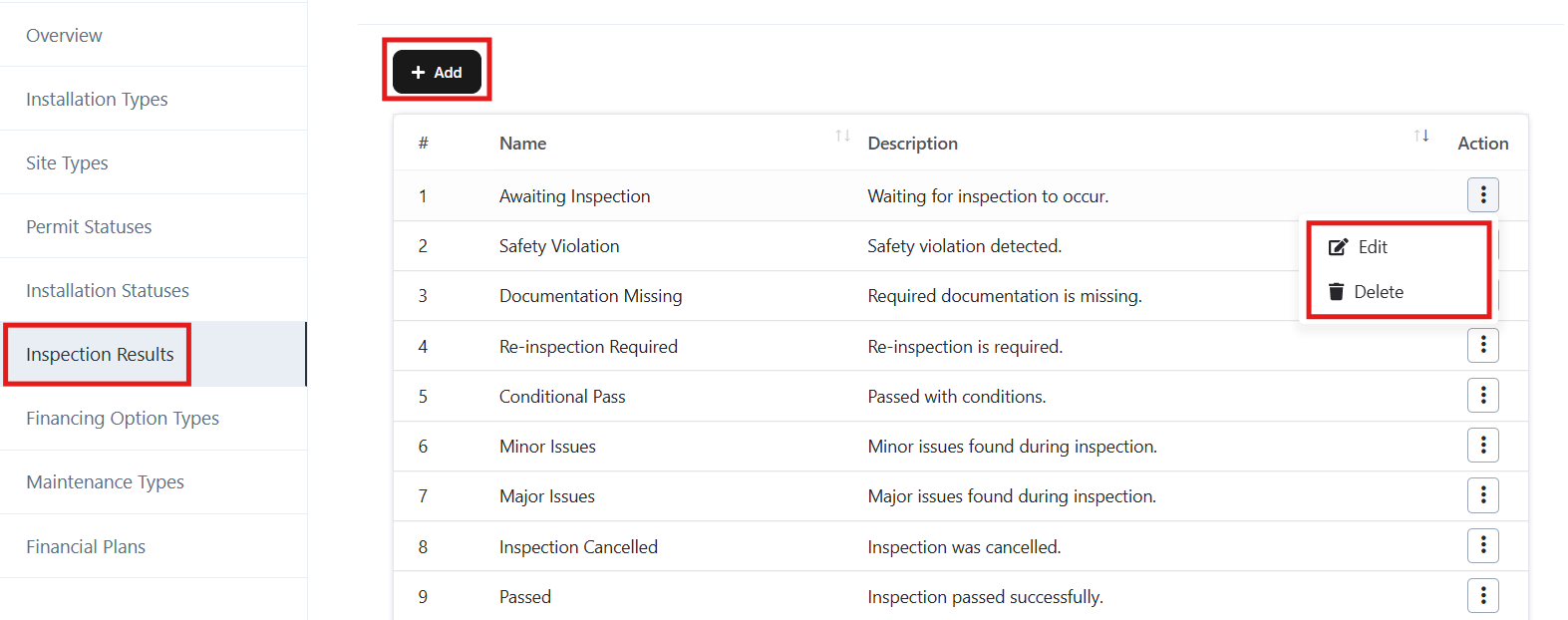
  • The list of inspection result will appear (e.g., Awaiting Inspection, Safety Violation, Documentation Missing).

Module Structure

The Inspection Result section includes:

  • Name – The title of the inspection outcome.
  • Description – A short explanation of the result.
  • Actions – Options to Edit or Delete a record.

Features

1. View Existing Inspection Results

  • Displays a list of predefined and custom inspection result.
  • Examples: Awaiting Inspection, Passed, Conditional Pass, Major Issues, Cancelled.

2. Add New Inspection Result

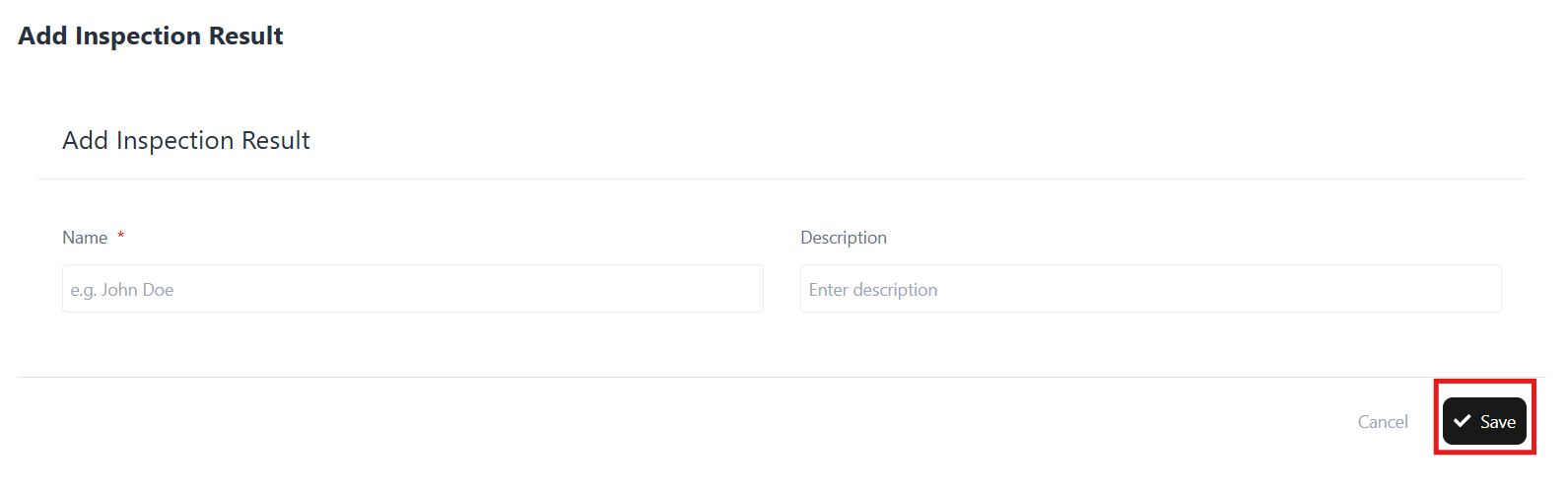
  • Click the Add button at the top of the page.
  • Fill in:
    • Name (e.g., “Re-inspection Required”).
    • Description (e.g., “Re-inspection is required due to pending issues.”).
  • Click Save to add the new result.

Add New Inspection Result

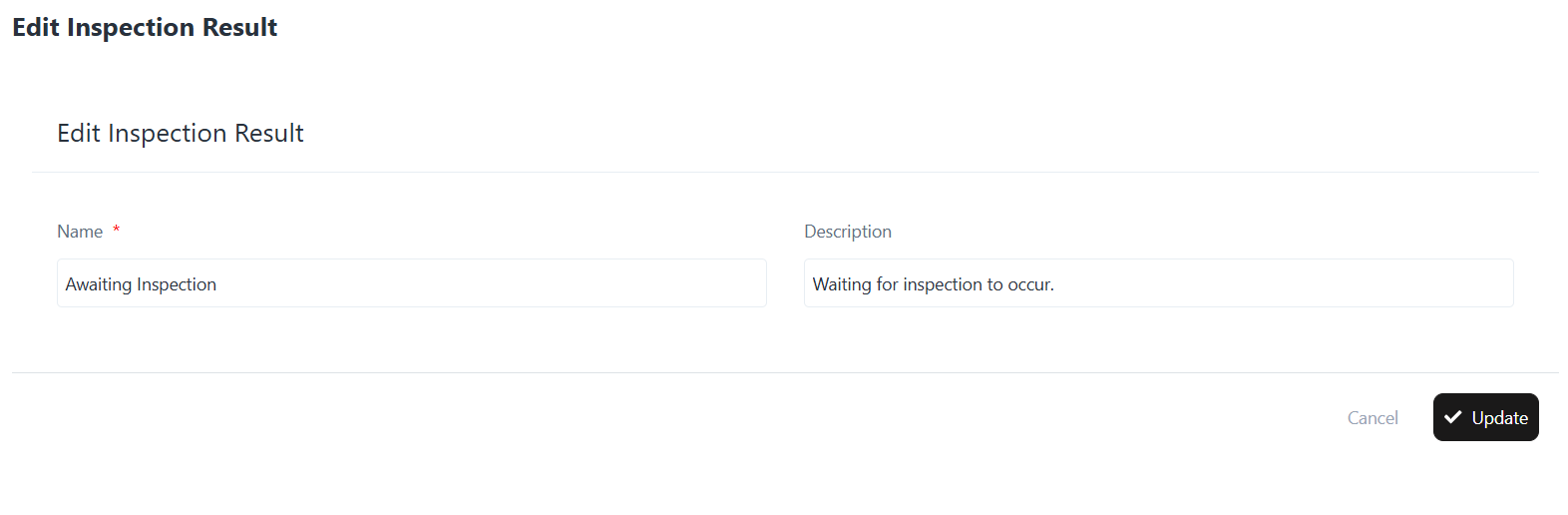
3. Edit an Existing Inspection Result

  • Locate the inspection result from the list.
  • Click Actions → Edit.
  • Update the Name or Description as needed.
  • Click Update to save changes.

Edit an Existing Inspection Result

4. Delete an Inspection Result

  • Locate the result you want to remove.
  • Click Actions → Delete.
  • Confirm deletion to remove the entry.

Installation Status

Installation Status

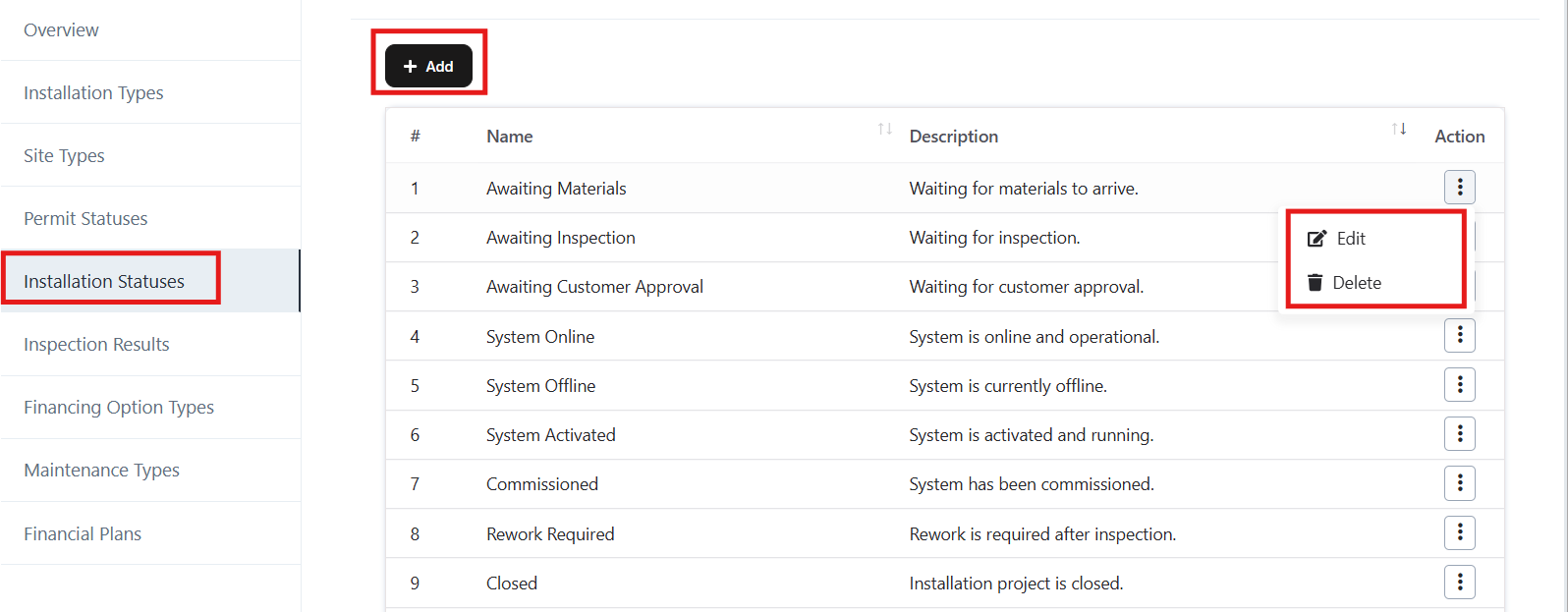
The Installation Statuses module allows you to create, edit, and delete different statuses for installation projects. These statuses help track project progress effectively.

1. Navigate to Installation Statuses

  • From the left menu, click on Installation Statuses.
  • You will see a list of existing statuses with their NameDescription, and available Actions.

Navigate to Installation Statuses

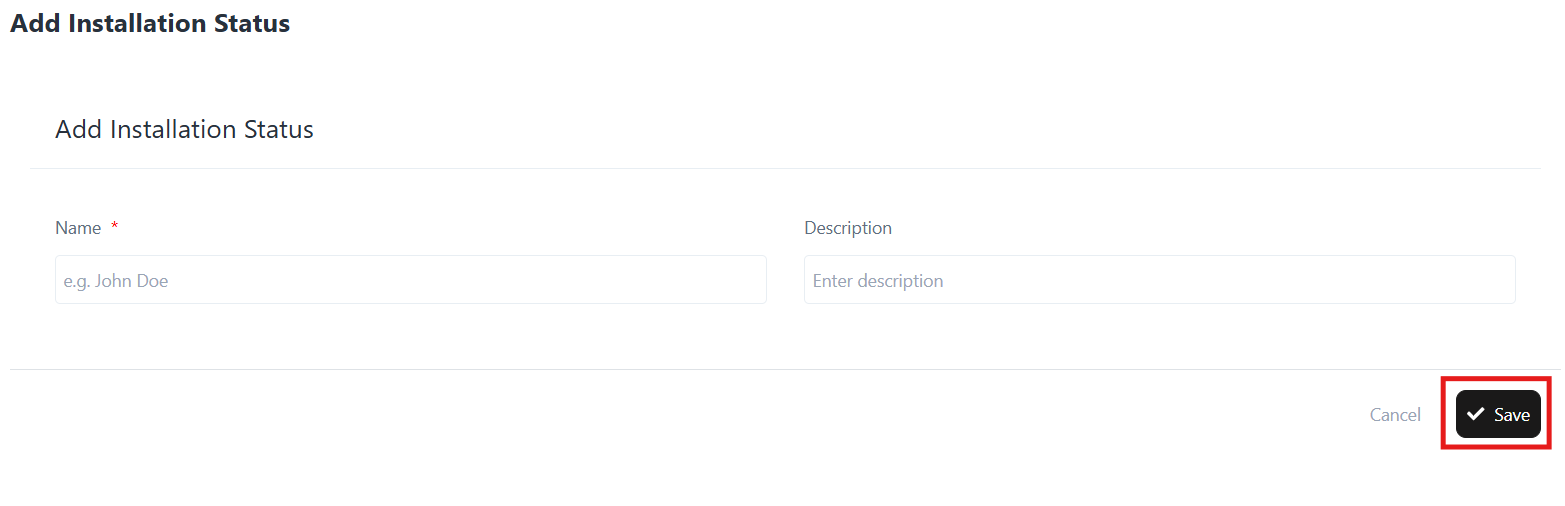
2. Add a New Installation Status

  • Click the + Add button at the top of the Installation Statuses list.
  • Enter the following details:
    • Name*: The title of the status (e.g., Awaiting Materials).
    • Description: A short explanation of the status (e.g., Waiting for materials to arrive.).
  • Click Save to create the new status.

Add a New Installation Status

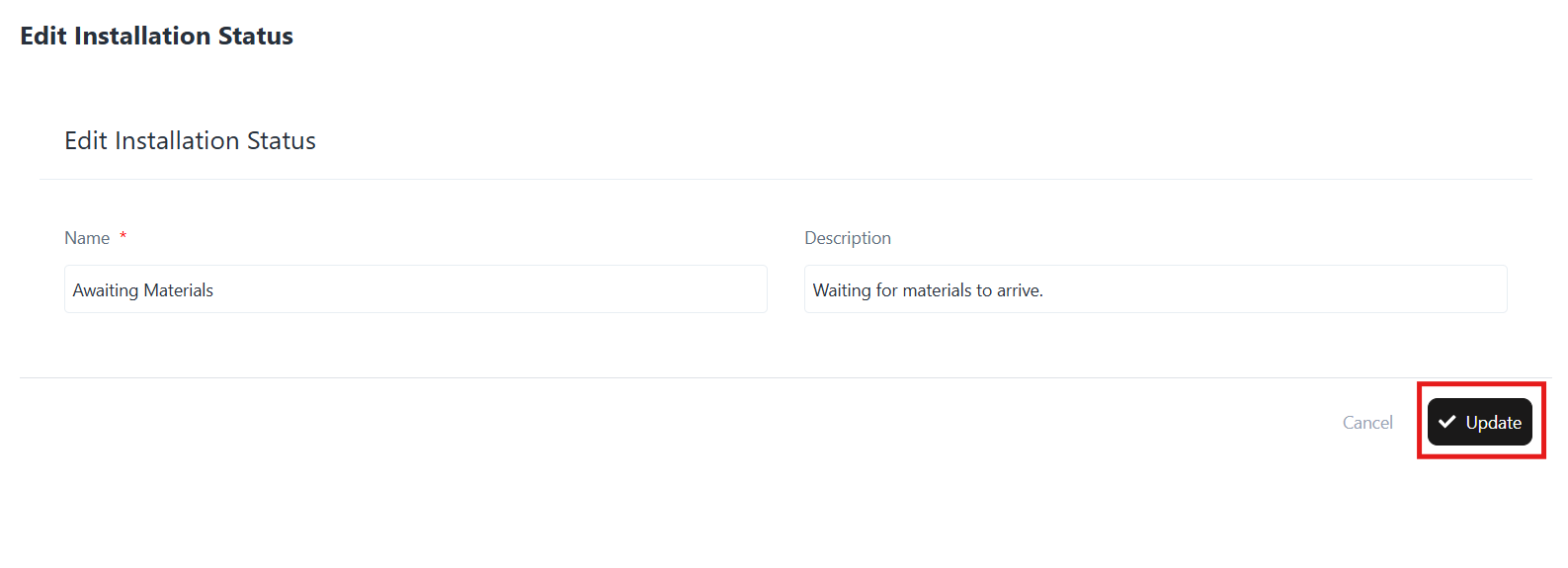
3. Edit an Existing Installation Status

  • Locate the status you want to edit in the list.
  • Click the ⋮ (three dots) under the Action column.
  • Select Edit.
  • Update the Name or Description as needed.
  • Click Update to save the changes.

Edit an Existing Installation Status

4. Delete an Installation Status

  • Locate the status you want to remove.
  • Click the ⋮ (three dots) under the Action column.
  • Select Delete.
  • Confirm deletion when prompted.

Note: Deleted statuses cannot be recovered. Ensure the status is not in use before deleting.

5. Example Installation Statuses

Here are some predefined statuses you may encounter or create:

  • Awaiting Materials – Waiting for materials to arrive.
  • Awaiting Inspection – Waiting for inspection.
  • Awaiting Customer Approval – Waiting for customer approval.
  • System Online – System is online and operational.
  • System Offline – System is currently offline.
  • System Activated – System is activated and running.
  • Commissioned – System has been commissioned.
  • Rework Required – Rework is required after inspection.
  • Closed – Installation project is closed.

Permit Statuses

Permit Statuses

Overview

The Permit Statuses section in the Solar module helps track and manage the lifecycle of permits required for solar installations. By defining various statuse such as “Awaiting Approval,” “Approved,” or “Rejected,” businesses can efficiently monitor the progress of permit applications and stay compliant with utility and municipal requirements.

Why Permit Statuses?

Permit Statuse are essential for:

  • Standardizing the tracking of permit processes across projects.
  • Providing visibility into pending, approved, rejected, or expired permits.
  • Improving project scheduling by ensuring permit readiness.
  • Streamlining communication with stakeholders on permit progress.

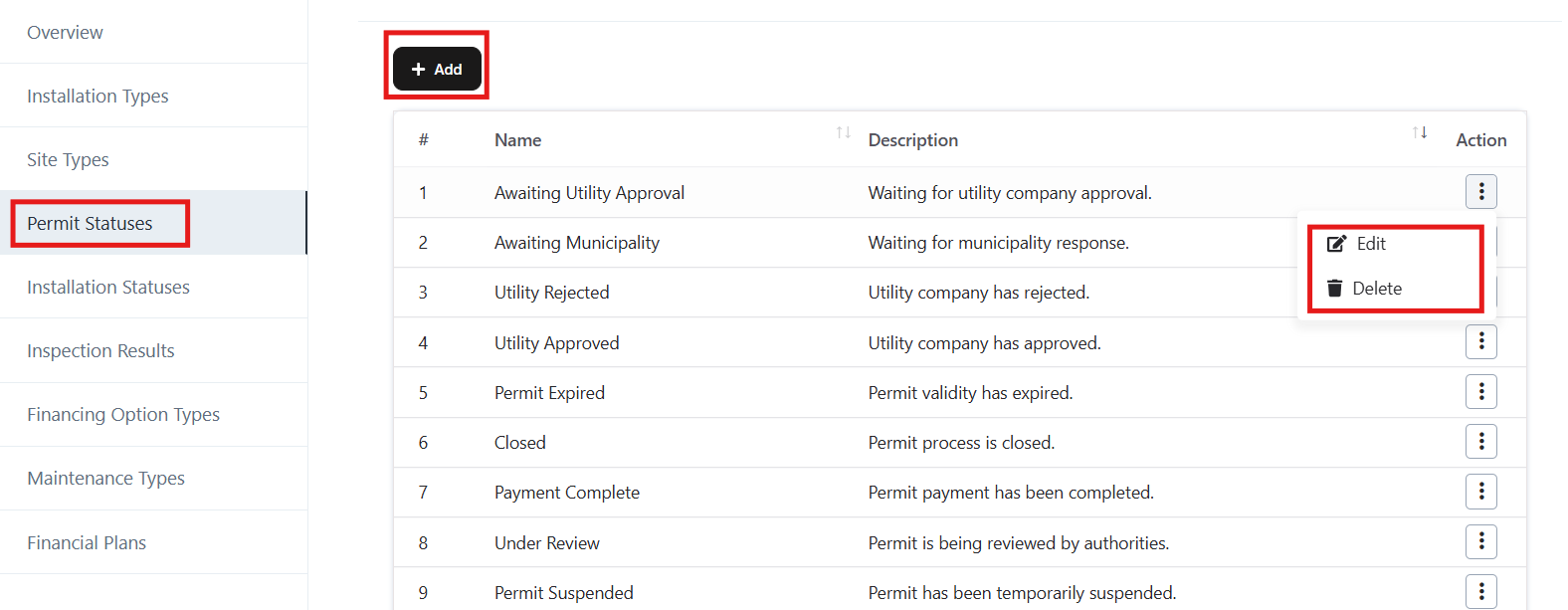
Accessing Permit Statuses

  • Log in to the application.
  • From the left navigation menu, go to Solar → Settings.
  • Select Permit Statuse from the list.

Accessing Permit Statuses

Module Structure

Permit Status List

  • Displays all permit statuse with Name and Description.
  • Provides Action options for each permit status:
    • Edit – Update the details of an existing permit status.
    • Delete – Remove a permit status from the system.

Navigation Path:
Login ➜ Solar ➜ Settings ➜ Permit Statuses

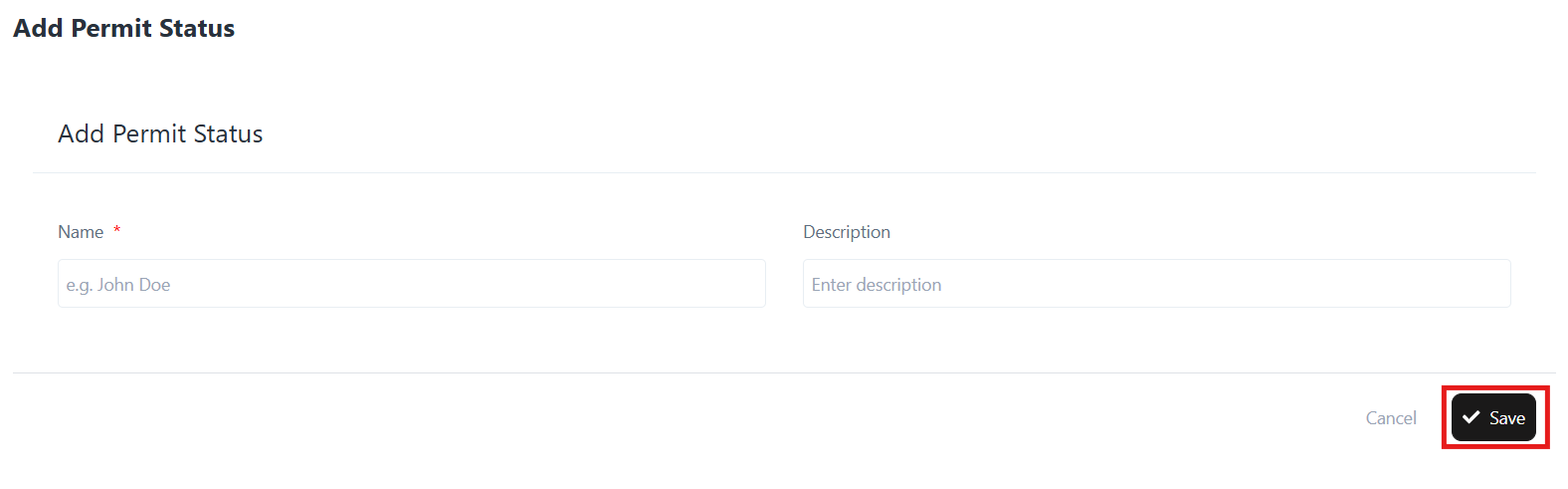
Add a New Permit Status

  • Click on the Add button.
  • Enter the following details:
    • Name – Define the status (e.g., Awaiting Utility Approval).
    • Description – Provide details about the status (e.g., Waiting for utility company approval).
  • Click Save to create the new permit status.

Add a New Permit Status

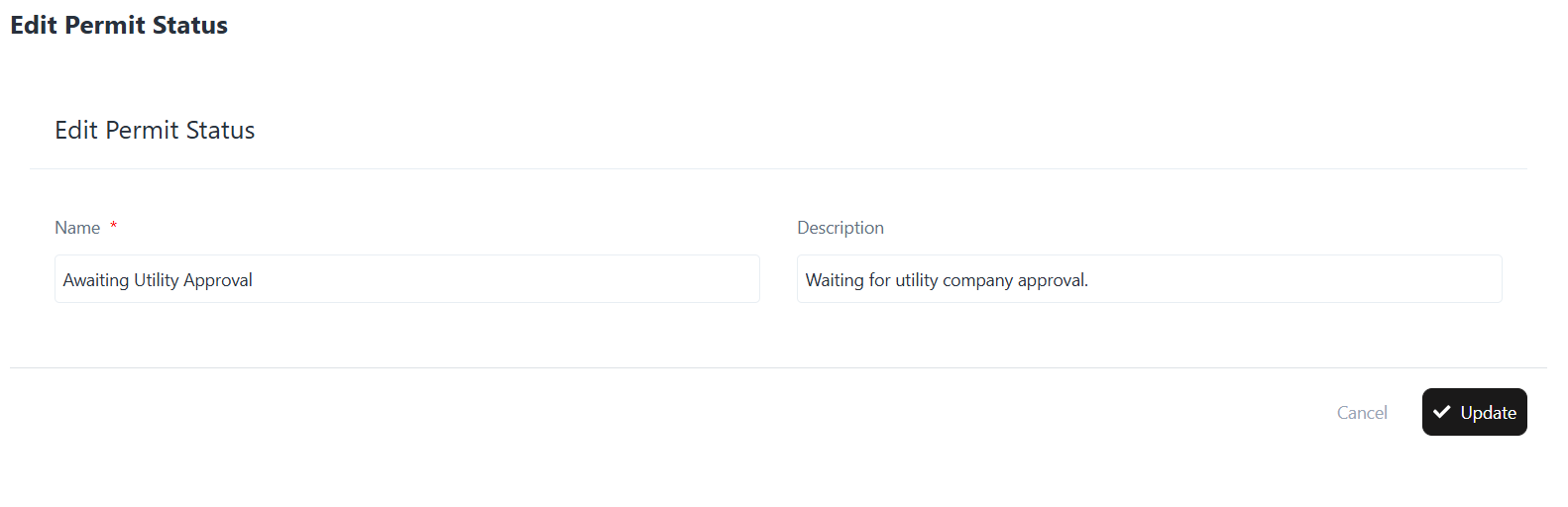
Edit an Existing Permit Status

  • From the Permit Status list, click the Edit option under Actions.
  • Update the required details (Name, Description).
  • Click Update to save the changes.

Edit an Existing Permit Status

Delete a Permit Status

  • From the Permit Status list, click the Delete option under Actions.
  • Confirm the action to permanently remove the permit status.

Site Types

Site Types

Overview

The Site Types section in the Solar module allows users to define and manage various types of sites where solar installations can be performed. By categorizing sites (e.g., Residential, Utility Scale, Vacant Land, Industrial), businesses can standardize project management, streamline reporting, and improve project allocation.

Why Site Types?

The Site Type feature enables you to:

  • Classify solar project sites based on usage (Residential, Industrial, Recreational, etc.).
  • Maintain consistent site categorization for reporting and analysis.
  • Easily manage and edit existing site type.
  • Ensure better project planning by associating projects with accurate site types.

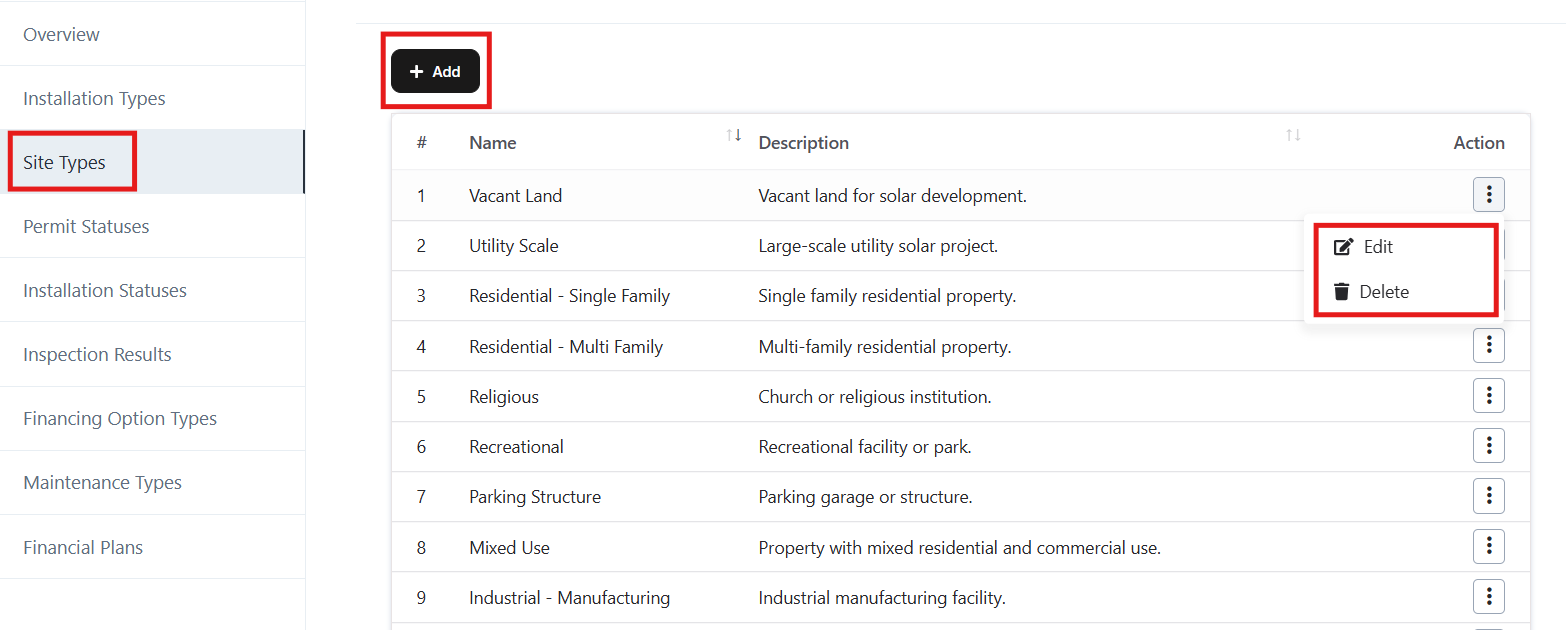
Accessing Site Types

  • Log in to the application.
  • From the left navigation panel, go to Solar → Settings.
  • Select Site Type from the Settings menu.

Module Structure

Site Types List

  • Displays all existing site type with Name and Description.
  • Provides Action options for each site type:
    • Edit – Update existing site type details.
    • Delete – Remove a site type from the system.

Navigation Path:

Login ➜ Solar ➜ Settings ➜ Site Types

Navigation Path:

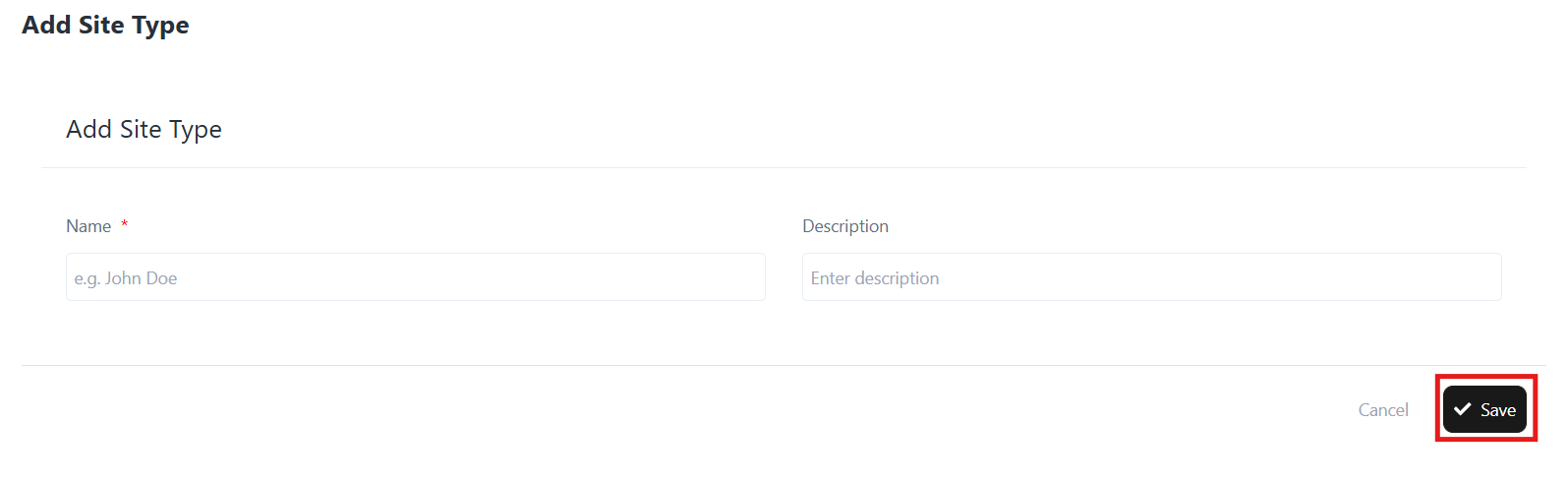
Add a New Site Type

  • Click on the Add button.
  • Fill in the required fields:
    • Name – Enter the site type name (e.g., Residential – Single Family).
    • Description – Provide a short description of the site type.
  • Click Save to add the new site type.

Add a New Site Type

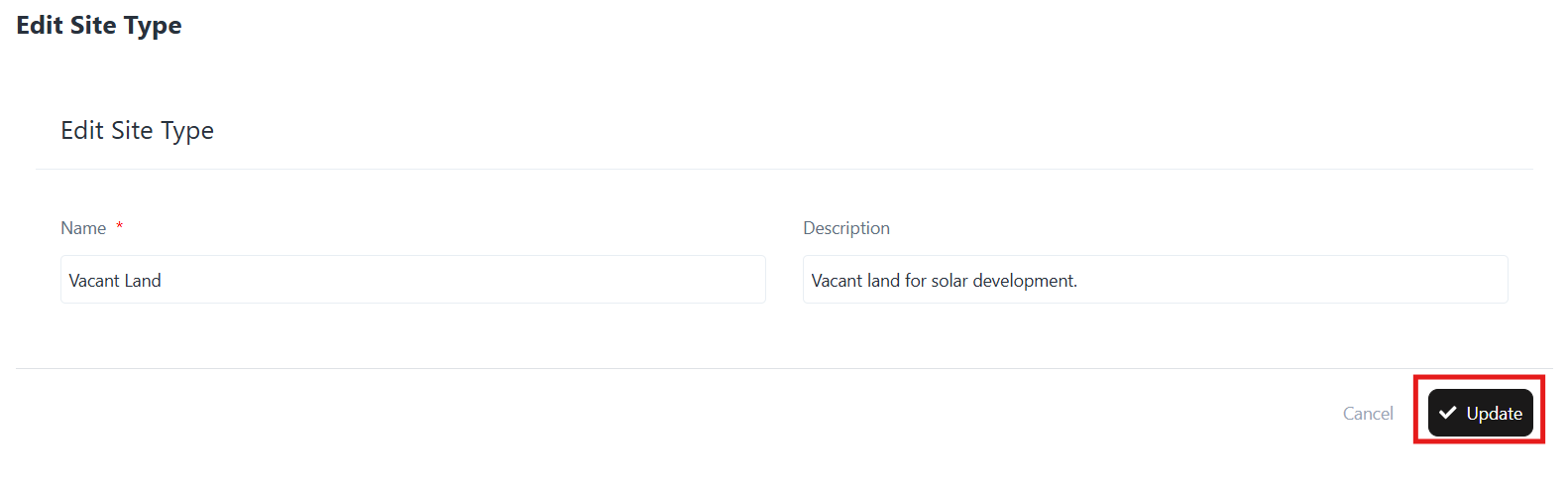
Edit an Existing Site Type

  • From the Site Type list, click on the Edit option under Actions.
  • Update the required details (Name, Description).
  • Click Update to save changes.

Edit an Existing Site Type

Delete a Site Type

  • From the Site Type list, click on the Delete option under Actions.
  • Confirm the action to permanently remove the site type.