Installation Status
The Installation Statuses module allows you to create, edit, and delete different statuses for installation projects. These statuses help track project progress effectively.
1. Navigate to Installation Statuses
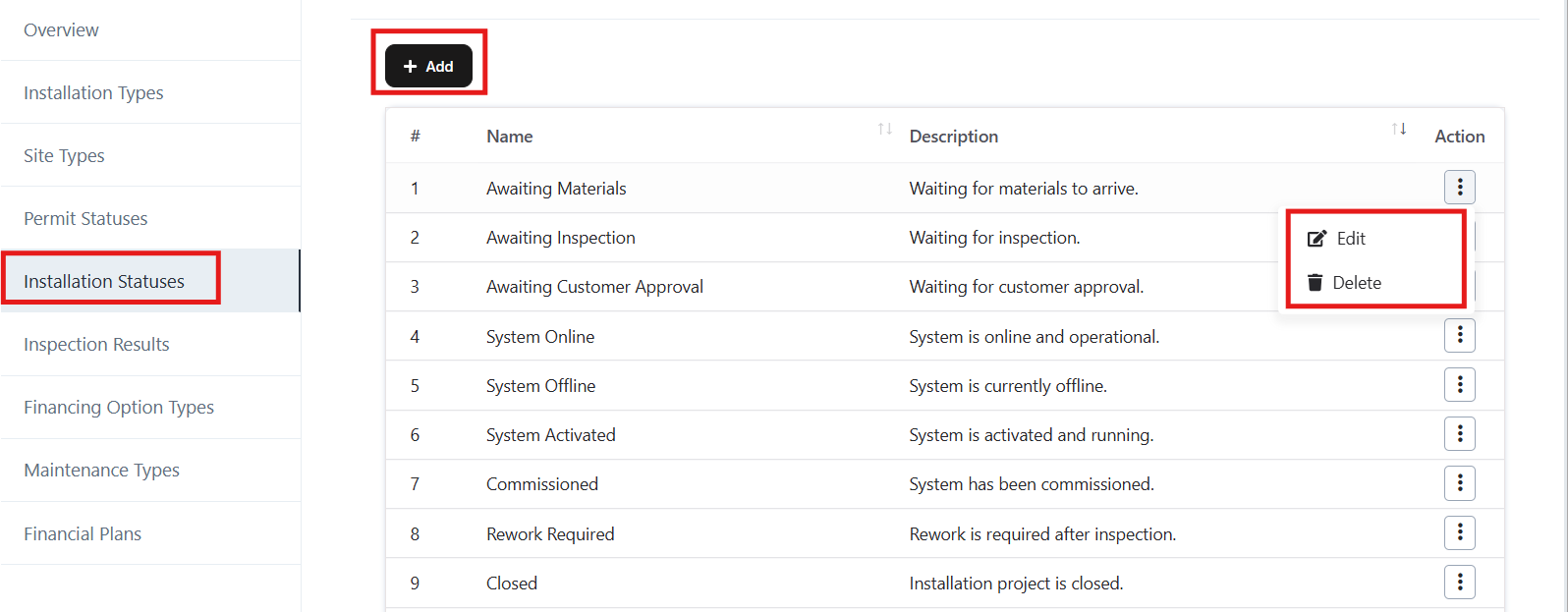
- From the left menu, click on Installation Statuses.
- You will see a list of existing statuses with their Name, Description, and available Actions.
2. Add a New Installation Status
- Click the + Add button at the top of the Installation Statuses list.
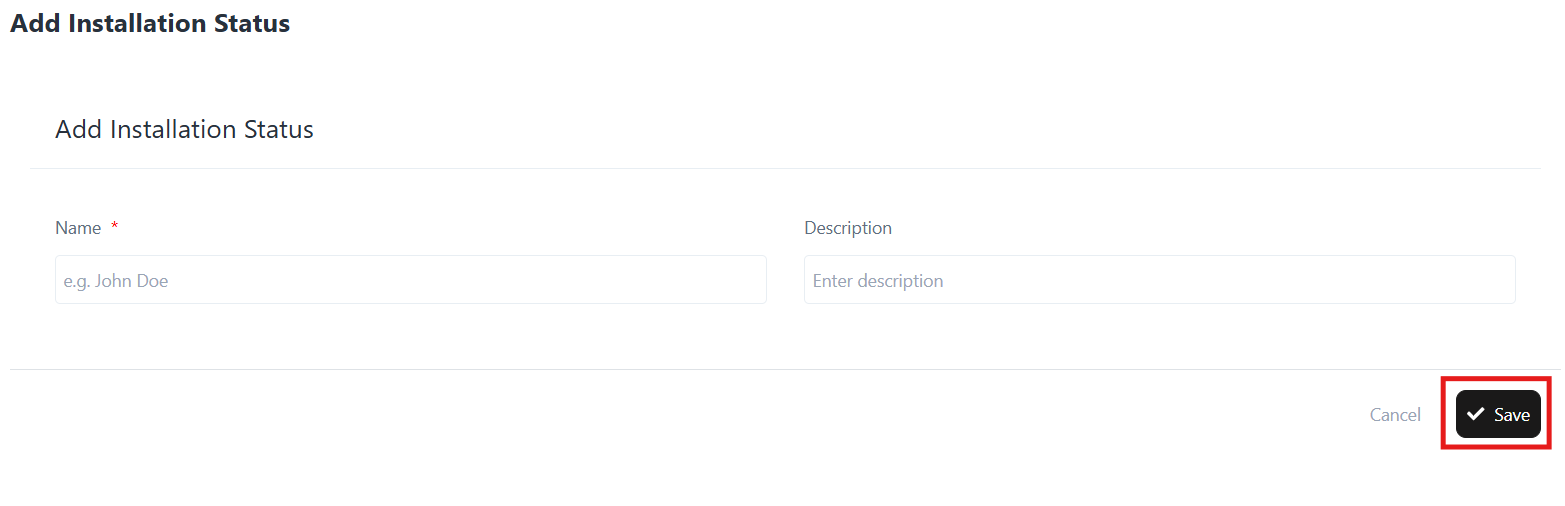
- Enter the following details:
- Name*: The title of the status (e.g., Awaiting Materials).
- Description: A short explanation of the status (e.g., Waiting for materials to arrive.).
- Click Save to create the new status.
3. Edit an Existing Installation Status
- Locate the status you want to edit in the list.
- Click the ⋮ (three dots) under the Action column.
- Select Edit.
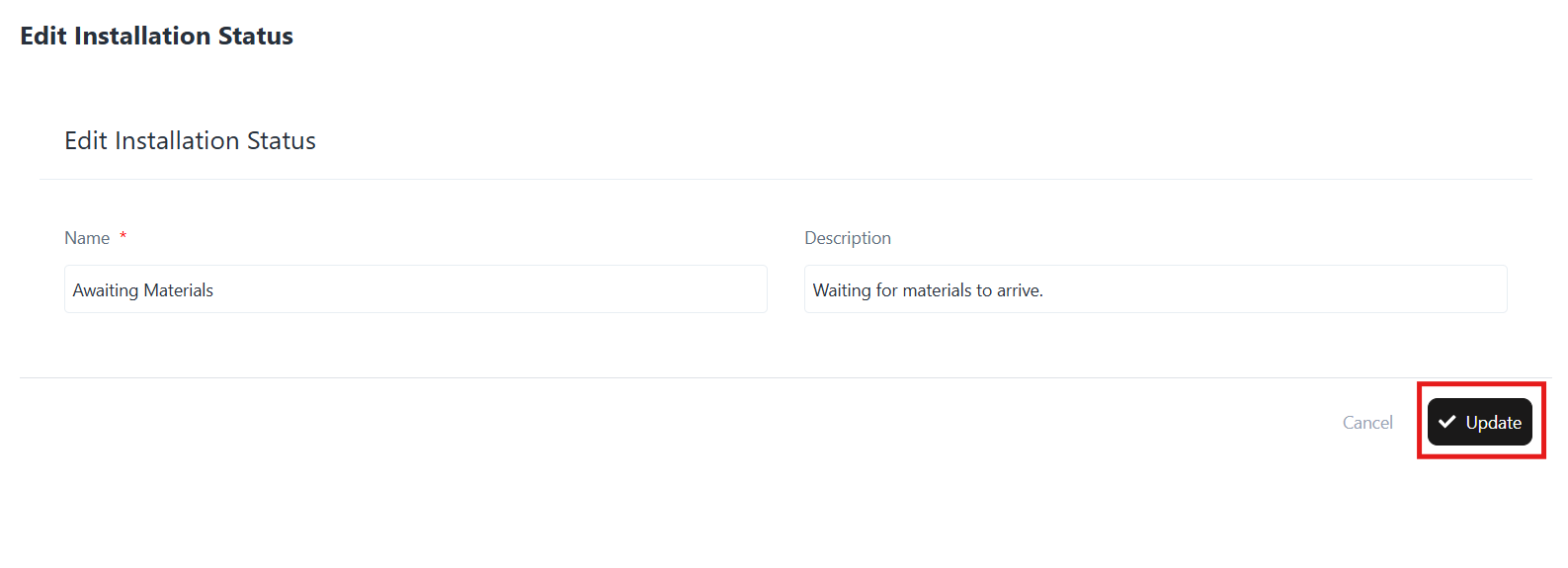
- Update the Name or Description as needed.
- Click Update to save the changes.
4. Delete an Installation Status
- Locate the status you want to remove.
- Click the ⋮ (three dots) under the Action column.
- Select Delete.
- Confirm deletion when prompted.
Note: Deleted statuses cannot be recovered. Ensure the status is not in use before deleting.
5. Example Installation Statuses
Here are some predefined statuses you may encounter or create:
- Awaiting Materials – Waiting for materials to arrive.
- Awaiting Inspection – Waiting for inspection.
- Awaiting Customer Approval – Waiting for customer approval.
- System Online – System is online and operational.
- System Offline – System is currently offline.
- System Activated – System is activated and running.
- Commissioned – System has been commissioned.
- Rework Required – Rework is required after inspection.
- Closed – Installation project is closed.